> For the complete documentation index, see [llms.txt](https://infronai.gitbook.io/docs/llms.txt). Markdown versions of documentation pages are available by appending `.md` to page URLs; this page is available as [Markdown](https://infronai.gitbook.io/docs/frameworks-and-integrations/claude-code-integration-guide.md).
# Claude Code Integration Guide
Use Claude Agent SDK and Claude Code with Infron AI models
### What's Claude Code
[Claude Code](https://www.claude.com/product/claude-code) is an AI-powered coding assistance published by Anthropic that provides a terminal interface, allowing developers to delegate complex programming tasks directly from the terminal to Claude Code for completion.
### **What We Help You Achieve**
With Infron, developers can seamlessly integrate and utilize a [wide range of AI model](https://infron.ai/models) combinations. Through **Infron**, you can use **Claude code** powered by different underlying model engines, including:
* **Gemini 3 models** as the core runtime for executing Claude code;
* **GPT series models** as the core runtime for executing Claude code;
* The **full series of Claude models** as the native core for executing Claude code.
This flexible architecture allows Infron to unify multiple large language model ecosystems under a single interface, enabling developers to switch, combine, or optimize model performance for diverse code execution and reasoning scenarios.
### Quick Start
Now, Infron provides [Anthropic SDK compatible LLM API services](/docs/frameworks-and-integrations/anthropic-sdk-compatibility.md), enabling you to easily use Infron AI LLM models in Claude Code to complete tasks. Please refer to the guide below to complete the integration process.
#### 1. Setup your Infron account & api keys
The first step to start using Infron is to [create an account](https://infron.ai/login) and [get your API key](https://infron.ai/dashboard/apiKeys).
#### 2. Install Claude Code
{% hint style="info" %}
Before installing Claude Code, please ensure your local environment has [Node.js 18 or higher](https://nodejs.org/en/download/) installed.
{% endhint %}
To install Claude Code, run the following command:
{% tabs %}
{% tab title="NPM" %}
```sh
npm install -g @anthropic-ai/claude-code
```
{% endtab %}
{% tab title="cURL" %}
```bash
curl -fsSL https://claude.ai/install.sh | bash
```
{% endtab %}
{% endtabs %}
#### 3. Setup the Claude Code configuration
Open the terminal and set up environment variables as follows:
{% tabs %}
{% tab title="Claude as Model" %}
```sh
# Set the Anthropic SDK compatible API endpoint provided by Infron.
export ANTHROPIC_BASE_URL="https://llm.onerouter.pro"
export ANTHROPIC_AUTH_TOKEN=""
# Set the model provided by Infron.
export ANTHROPIC_MODEL="anthropic/claude-opus-4.7"
export ANTHROPIC_SMALL_FAST_MODEL="anthropic/claude-haiku-4.5"
export ANTHROPIC_DEFAULT_HAIKU_MODEL="anthropic/claude-haiku-4.5"
export ANTHROPIC_DEFAULT_OPUS_MODEL="anthropic/claude-opus-4.7"
export ANTHROPIC_DEFAULT_SONNET_MODEL="anthropic/claude-sonnet-4.5"
```
{% endtab %}
{% tab title="Gemini as Model" %}
```sh
export ANTHROPIC_BASE_URL="https://llm.onerouter.pro"
export ANTHROPIC_AUTH_TOKEN=""
export ANTHROPIC_MODEL="google/gemini-3-flash-preview"
export ANTHROPIC_SMALL_FAST_MODEL="google/gemini-3-flash-preview"
export ANTHROPIC_DEFAULT_HAIKU_MODEL="google/gemini-3-flash-preview"
export ANTHROPIC_DEFAULT_OPUS_MODEL="google/gemini-3-flash-preview"
export ANTHROPIC_DEFAULT_SONNET_MODEL="google/gemini-3-flash-preview"
```
{% endtab %}
{% endtabs %}
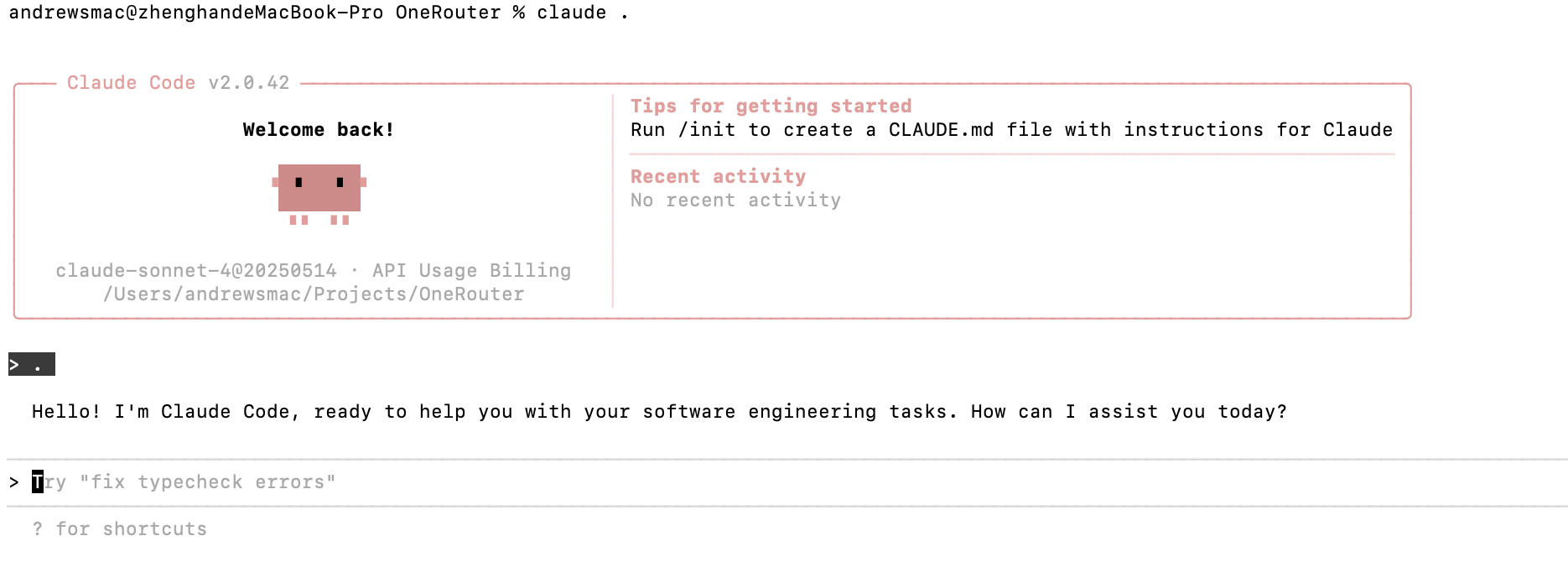
#### 4. Start your first session
Next, navigate to your project directory and start Claude Code. You will see the Claude Code prompt inside a new interactive session:
```sh
cd
claude .
```
### Common Commands
| Command | Description | Example |
| --------------------------- | --------------------------------- | ----------------------------------- |
| `claude` | Start interactive mode | `claude` |
| `claude "task description"` | Run a one-time task | `claude "fix the build error"` |
| `claude -p "query"` | Run one-off query, then exit | `claude -p "explain this function"` |
| `claude -c` | Continue most recent conversation | `claude -c` |
| `claude -r` | Resume a previous conversation | `claude -r` |
| `claude commit` | Create a Git commit | `claude commit` |
| `/clear` | Clear conversation history | `> /clear` |
| `/help` | View available commands | `> /help` |
| `exit` or Ctrl+C | Exit Claude Code | `> exit` |
---
# Agent Instructions
This documentation is published with GitBook. GitBook is the documentation platform designed so that both humans and AI agents can read, navigate, and reason over technical content effectively. Learn more at gitbook.com.
## Querying This Documentation
If you need additional information that is not directly available in this page, you can query the documentation dynamically by asking a question.
Perform an HTTP GET request on the current page URL with the `ask` query parameter, and the optional `goal` query parameter:
```
GET https://infronai.gitbook.io/docs/frameworks-and-integrations/claude-code-integration-guide.md?ask=&goal=
```
`ask` is the immediate question: it should be specific, self-contained, and written in natural language.
`goal` is optional and describes the broader end goal you are ultimately trying to accomplish on behalf of the user. GitBook uses it to tailor the answer towards what is most useful for that goal.
The response will contain a direct answer to the question and relevant excerpts and sources from the documentation.
Use this mechanism when the answer is not explicitly present in the current page, you need clarification or additional context, or you want to retrieve related documentation sections.